What it is
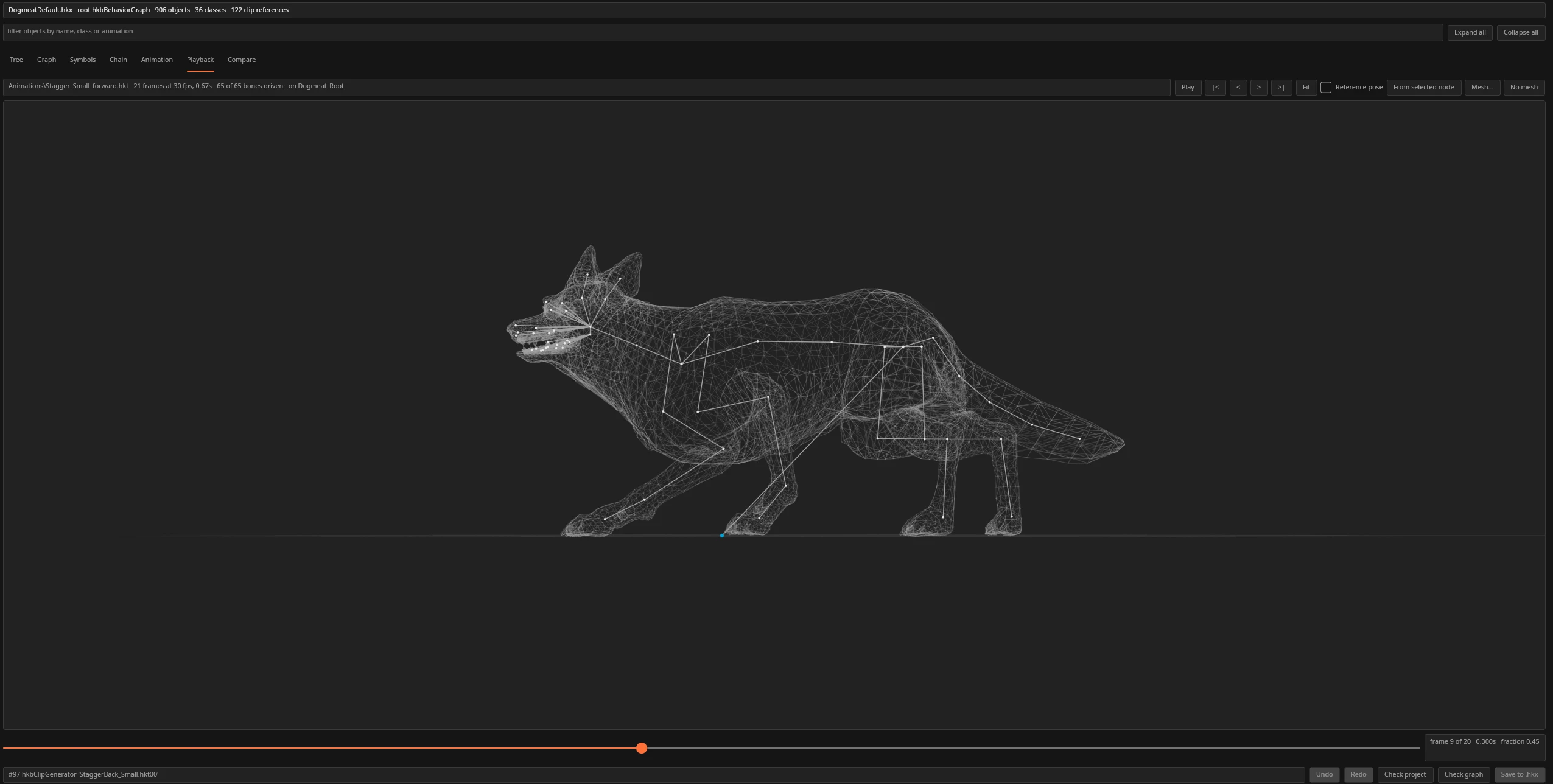
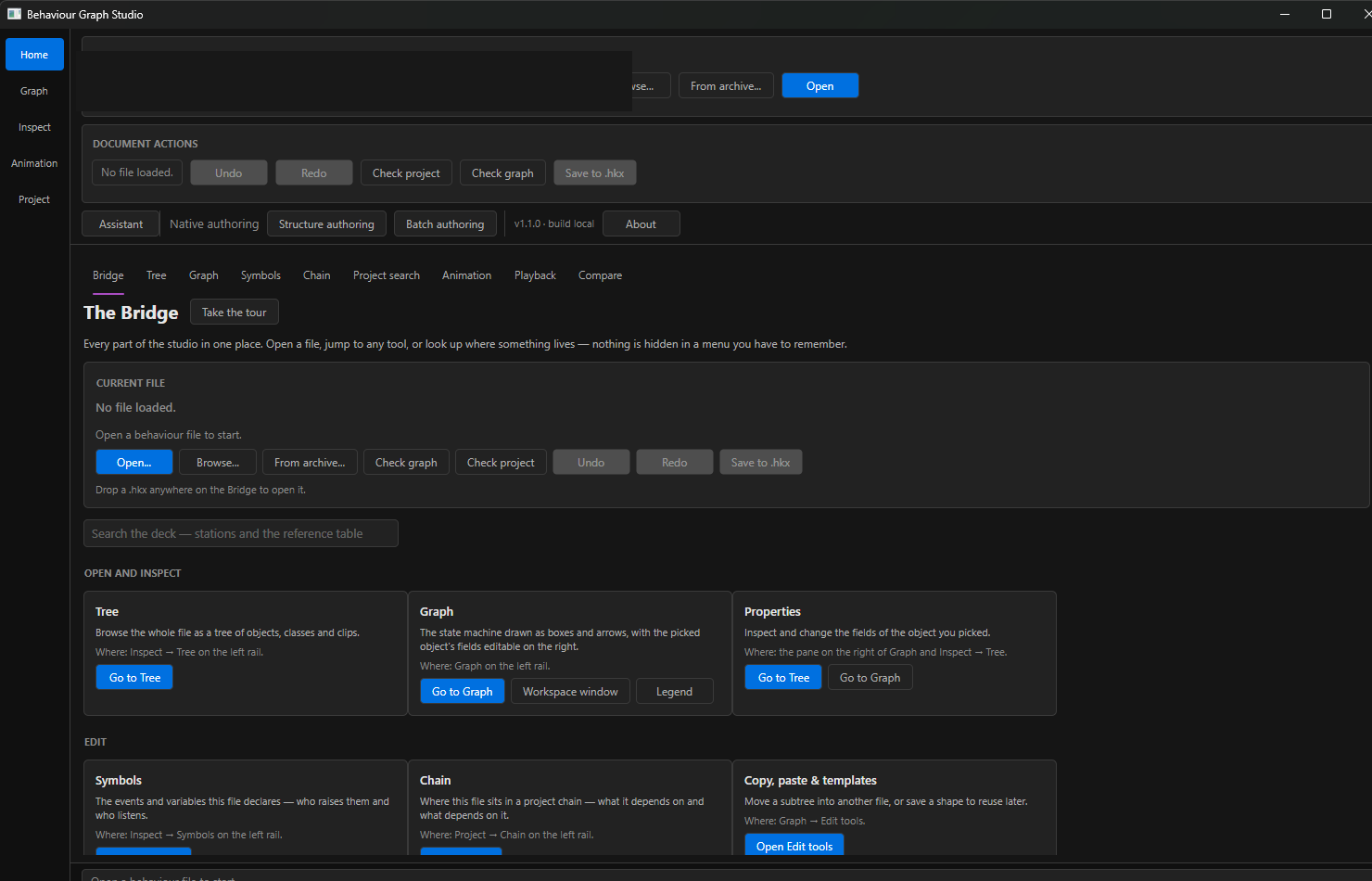
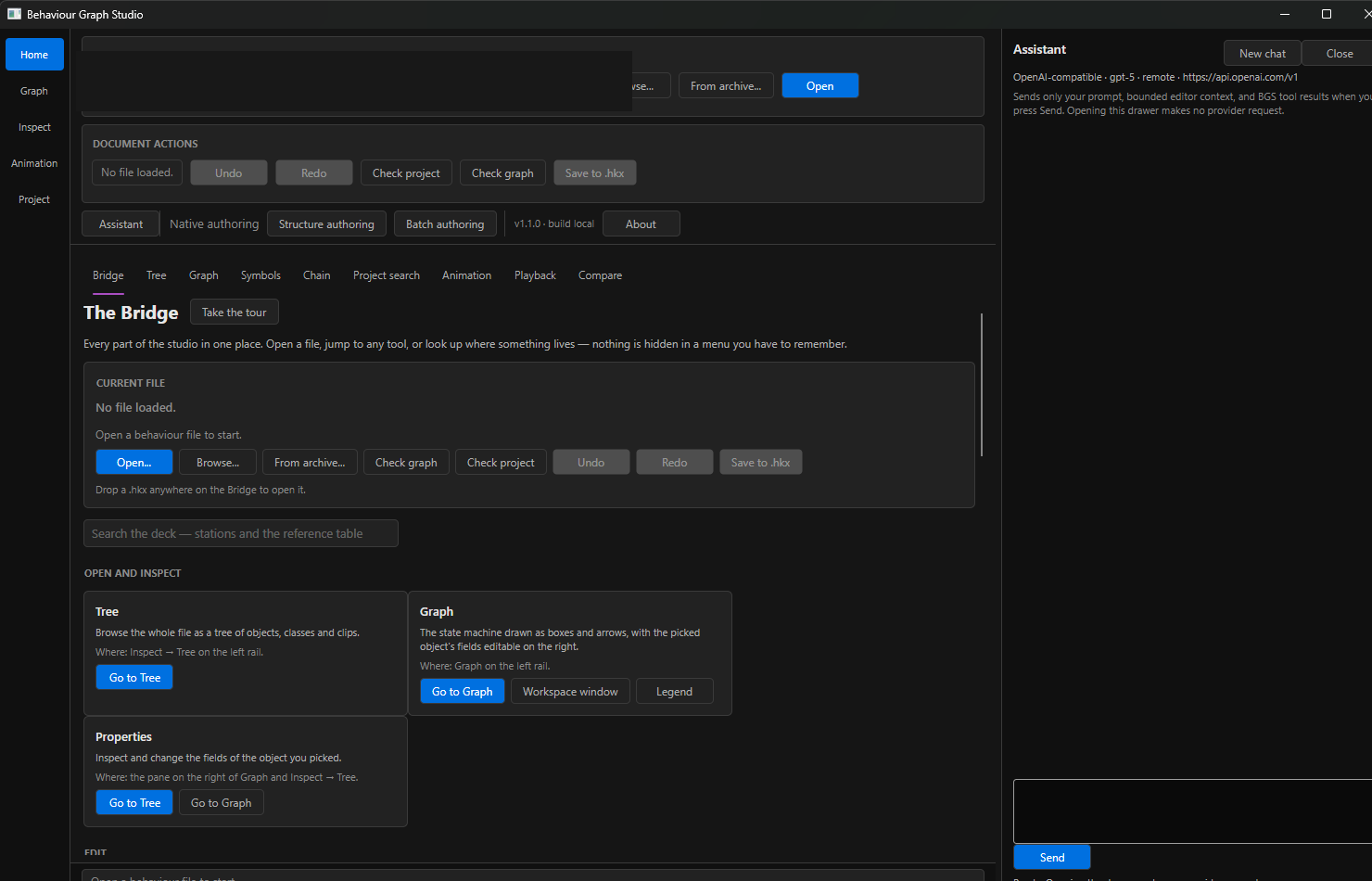
Fallout 4 keeps its animation logic in behaviour files: which clip plays, when it plays, how it blends, what events fire, and how states connect. Behavior Graph Studio reads the Fallout 4 Havok format directly and presents it as a tree, graph, symbol table, project chain, animation inspector, playback view, and comparison workspace. Supported edits use the built-in native save pipeline, with no Havok Content Tools, Java runtime, or game SDK required.
Guide
A full workflow from opening your first file to tracing graph logic, previewing animations, validating changes, comparing the final result, and testing safely in Fallout 4.
Getting Started
Install the tool, build a safe workspace, open files from disk or BA2 archives, and make your first verified edit.
Read →Tree & Graph View
Find objects quickly, frame selections, filter large files, and trace one state or generator through the graph.
Read →Editing Nodes
Edit fields, add and reconnect graph objects, use Undo and Redo, copy subtrees, and build reusable templates.
Read →Symbols & Variables
Manage variables, events, bounds, bindings, symbol usage, and the surrounding project chain.
Read →Animation & Playback
Inspect frames, filter bones, preview skeletons and supported meshes, check root motion, and diagnose timing problems.
Read →Compare & Simulation
Compare edited files against originals and simulate events, variables, transitions, timing, and state changes.
Read →Saving & Validating
Run graph and project checks, understand save refusals, keep automatic backups, and prepare edits for in-game testing.
Read →Troubleshooting & Tips
Work through read-only files, missing meshes, unresolved animations, broken transitions, save refusals, and crash debugging.
Read →.bak. If an edit cannot be represented safely, the application refuses the save instead of replacing the source file. Keep your backup until the edited behaviour has been tested in game.